First login
The system configuration will be written now, based on your input.
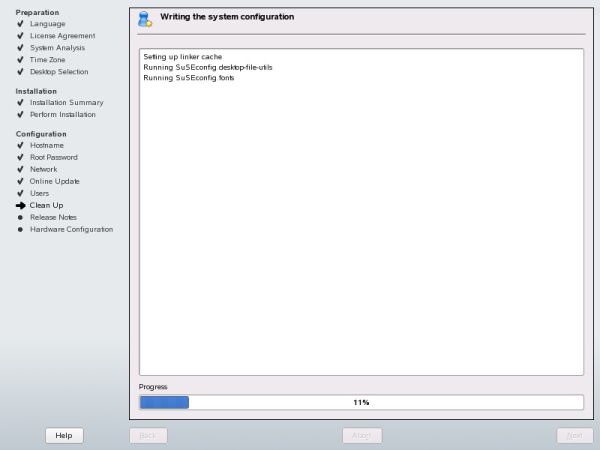
Once this step is completed, you will be able to read the Release Notes - all about what the new version 10.1 offers.

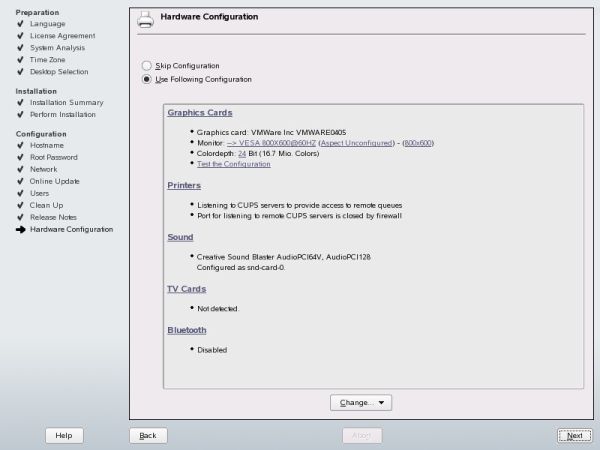
Once again, the installer will make a thorough examination of your hardware. You will be able to skip this step and configure each component later, but you should let the system commit the changes.
Most likely, you will have a sound card detected. The graphic card and monitor drivers will probably not be installed yet. You will have to do it later. Until then, you will enjoy only the basic VESA adapter at 60Hz refresh rate and no 3D acceleration. Then again, this might be enough for you. Once you accept, the configuration will be committed.
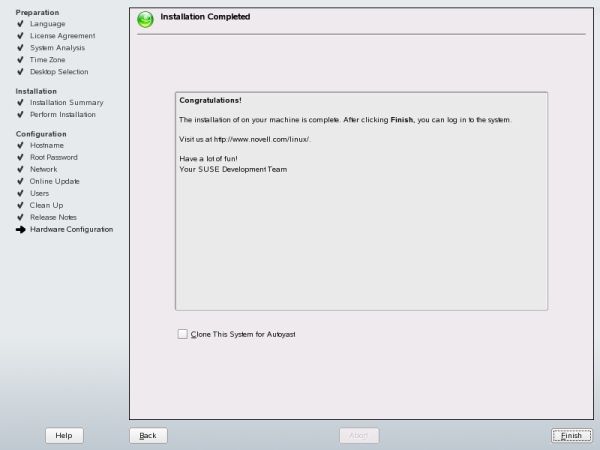
And that's it, basically! You have completed the installation. You have partitioned your hard disks, installed the packages, configured your user name, password, network, and other hardware. The entire procedure should have taken you about 40-50 minutes at most. When you click Finish, you will log in into your desktop.
If you have chosen the super-handsome KDE desktop, it will start loading.

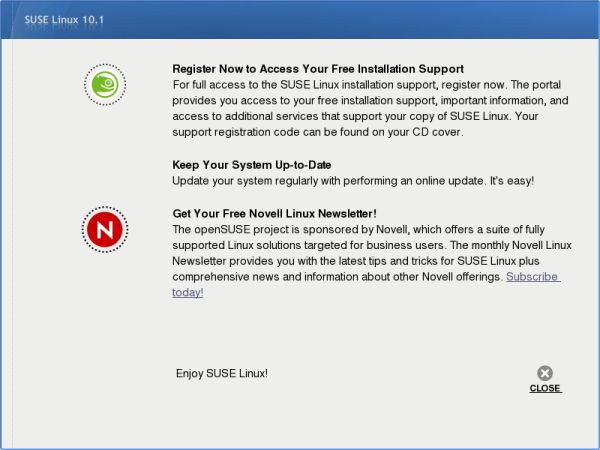
Just before you hit the desktop, you will be able to register your product. If you do not have an Internet connection or wish to do it later, postpone this step for later.
When installing in VMware Player / Server, you might be told that your monitor geometry is not configured properly. You will be prompted to set your screen. This is virtually identical to setting your display in Windows. Since this procedure will be invoked only if you have a graphic card installed, I will not post screenshots to avoid confusion. If you are using a virtualization product, you will most likely have the generic graphic drivers installed. If you are installing for real on physical hardware, you will need to configure your graphic drivers alone - see later in this manual. And that's it! We're in! Welcome to the most handsome Linux ever.
